Config files
Hesiod relies on config files, allowing you to create the config for your program with two simple concepts:
You should define the configs for each entity of your program in a separate file.
You can combine configs hierarchically to compose the global config of your program.
Config files content
Each config file represents a key-value dictionary. For the time being, Hesiod supports .yaml
files and you can write anything that is compliant with the YAML format:
p1: 1  # integer
p2: 1.2  # float
p3: 1e-4  # another float
p4: true  # boolean
p5: "test"  # string
p6: [1, 2, 3]  # list
p7: !!python/tuple [1, 2, 3]  # tuple
p8: !!set {1: null, 2: null, 3: null}  # set (yes, this is a python set in YAML)
p9: 2021-01-01  # date
p10:  # dictionary that contains...
  p11:  # ...another dictionary that contains...
    p12: 10  # ...an integer and...
    p13: "11"  # ...a string and...
    p14: 12.0  # ...a float
The base mechanism
One of the key elements in Hesiod is the base mechanism, triggered by the use of
the special keyword base. The first step to use the base mechanism consists in defining base
configs in a directory of your choice. This directory could be something like this:
cfg/bases
|
|____ scenario1
|    |
|    |____ case1
|    |    |____ params1.yaml
|    |    |____ params2.yaml
|    |
|    |____ case2
|         |____ params1.yaml
|         |____ params2.yaml
|
|____ scenario2
     |
     |____ ...
Please, note that scenario1, case1, case2, scenario2, etc. are just examples, they can be
whatever you need for your application.
You tell Hesiod where it can find your base configs by specifying the path to the bases directory in
the hmain decorator with the argument base_cfg_dir.
Then, you can use the keyword base to load in the current file the config dictionary defined in
some base file. For instance, if we have:
# cfg/bases/scenario1/case2/params2.yaml

p1: 1
p2: 2.0
p3: "3"
You can load the base scenario1.case2.params2 by doing:
# config.yaml

base: "scenario1.case2.params2"
p3: 3.456
Hesiod will solve the base keyword in config.yaml by loading in it the content from
cfg/bases/scenario1/case2/params2.yaml, without touching the parameters that are overriden in
config.yaml. The result is a config defined as:
p1: 1
p2: 2.0
p3: 3.456
Run files vs Template files
In Hesiod you have two options:
You can define a run file with the specific configs for each run of your program.
You can define a template file with the abstract structure of the config, without specifying any actual value.
Run files
Run files are normal config files, where you can compose configs with the base mechanism and/or specify additional parameters. Using the bases dir defined above, a valid run file could be:
# run.yaml

first_scenario:
  base: "scenario1.case2.params1"
second_scenario:
  base: "scenario2.case1.params2"
some_param: 1e-5
another_param: "test"
a_group_of_params:
  p1: 1
  p2: true
  p3: ["a", "b", "c"]

run_name: "very_cool_run"
Note that every run file must contain a valid run_name, that will be used by Hesiod to create
an output directory for the run (named accordingly).
Template files
Run files allow you to separate configs from your code, but are not very flexible and, most importantly, require you to prepare run files manually for each run, which is tedious and error prone. To overcome these limitations, Hesiod introduces the concept of template config files, where you define a generic structure for your config, without specifying the actual values that will be used in every run.
Template files can contain all the options available for normal config files (we will call them literal configs in the following). In addition, there are some special placeholders:
Placeholder |
Description |
|---|---|
|
The user will select one of the base configs (i.e. available in the path specified by complete path with the notation Optionally the user can also specify a default. |
|
The user will select one of the given options. |
|
The user will select between with the default set as specified. |
|
The user will select a file/dir starting either from the current directory or from a default path. |
|
The user will select a date, starting from today or from a default date. |
Template config files are processed by Hesiod to create a TUI (Text-base User Interface), where the user will be able to fill/select config values. Each config in the template file is associated with a TUI widget, whose kind depends on the config itself.
Literal configs
Literal configs are configs in the form key: value, where key is a string and value is any
literal value (integers, floats, booleans, tuples, lists, ecc.).
These configs are treated as plain strings in the TUI, so that you can edit value in any way you
want. Hesiod will process the final value with the python interpreter and will cast it to a proper
type if the interpreter recognizes it as such.
@BASE configs
Configs that use the @BASE placeholder are either in the form key: "@BASE(basekey)" or in
the form key: "@BASE(basekey,default)", where key is a string and basekey is a string indicating
the bases directory where Hesiod must look to gather all the options for the config. The user can
also provide a default selection for the config with an additional string inside the parentheses.
Let’s say that your bases directory looks like this:
cfg/bases
|
|____ dataset
     |
     |____ cifar
     |    |____ cifar10.yaml
     |    |____ cifar100.yaml
     |
     |____ imagenet.yaml
If you write param: "@BASE(dataset)" in your template file, you will get a widget like this:


The basekey can represent sub directories with the notation dir.subdir.subsubdir.... So, if you
write param: "@BASE(dataset.cifar)" in your template file, your options will be reduced to:

To specify a default selection, you can write, for example, param: "@BASE(dataset,imagenet)"
and the default selection will be imagenet.
@OPTIONS configs
Configs that use the @OPTIONS placeholder are in the form key: "@OPTIONS(opt1;opt2;...)",
where key is a string and opt1, opt2, etc. represent the available options for the config. Options
can be any string and, as usual, will be converted by Hesiod in the type detected by the python
interpreter, if possible.
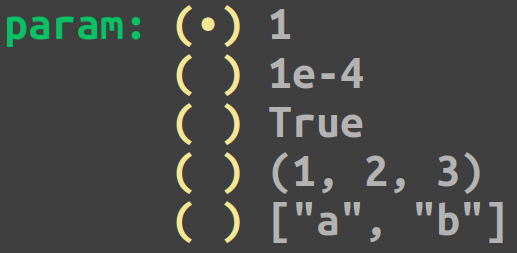
If you write param: "@OPTIONS(1;1e-4;True;(1, 2, 3);[\"a\", \"b\"])" in your template file, you
will be presented with the following widget in the TUI:
@BOOL configs
Configs that use the @BOOL placeholder are either in the form key: "@BOOL(true)" or in the
form key: "@BOOL(false)", where key is a string and the value between parentheses indicates the
default for the config.
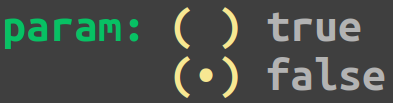
If you write param: "@BOOL(false)" in your template file, you will get a widget like this:
@PATH configs
Configs that use the @PATH placeholder are either in the form key: "@PATH" or in the form
key: "@PATH(/path/to/default)", where key is a string and the optional value between parentheses
indicates the default path for the config. This kind of config, in fact, allows the user to select
a path, that can be both a file or a directory. Let’s say you have a directory that looks like this:
my_dir
|
|____ my_subdir
     |
     |____ my_subsub_dir
     |    |____ file1.txt
     |    |____ file2.txt
     |
     |____ file3.txt
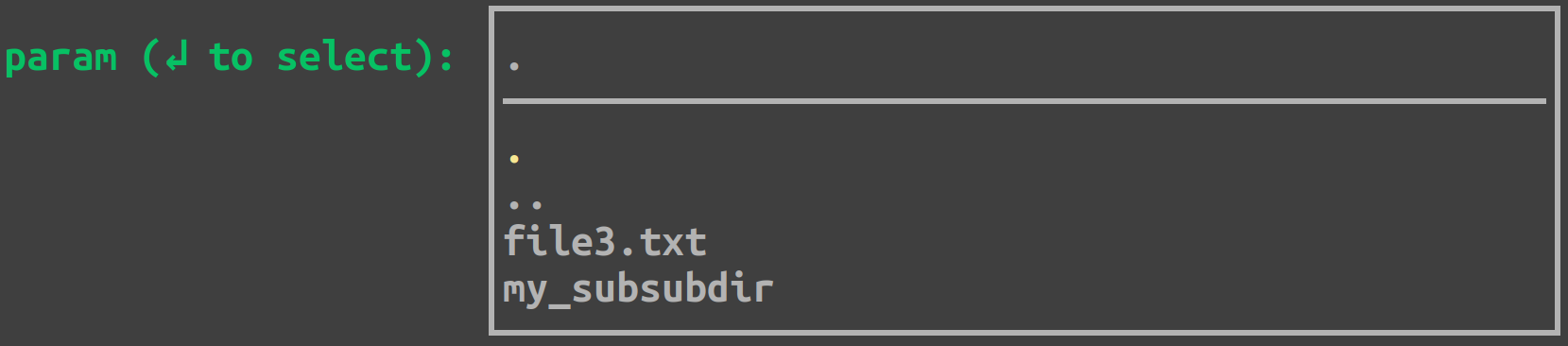
If you write param: "@PATH(my_dir/my_subdir)" in your template file, the TUI will present a
widget like this:

@DATE configs
Configs that use the @DATE placeholder are either in the form key: "@DATE" or in the form
key: "@DATE(default)", where key is a string and the optional value between parentheses is the
default date for the config. The default date can be either today or a date in the format
YYYY-MM-DD (e.g. 2021-01-11).
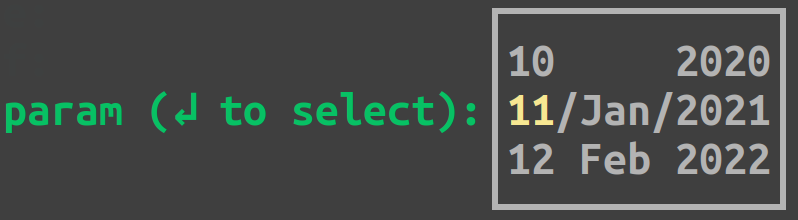
If you write param: "@DATE(2021-01-11)" in your template file, you will be presented with the
following widget: